![floq-logo-by-cc-2-white@2x.png]](https://knowledge.conferencecompass.com/hs-fs/hubfs/floq-logo-by-cc-2-white@2x.png?height=40&name=floq-logo-by-cc-2-white@2x.png)
In order to use the vote and ask at your in-person event, take the following steps:
Step 1: Enable the Vote & Q&A features in your app
To make the Vote or Q&A card appear in the app, you need to turn it on through the data types.
Go to Event settings > Data types and find below Programme items the type you want to turn it on for. Scroll down to the Content section, Interactive tab, and make sure that the Vote and Q&A items are visible.
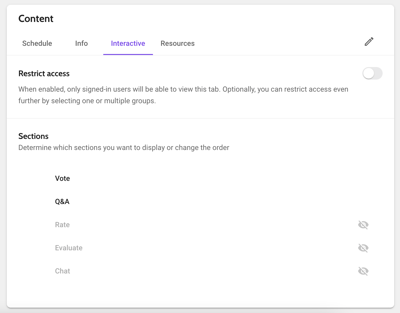
For the features you switch on, a card will appear in the on type's detail page under the tab Interactive. Make sure to create a release after you have made your changes.
Step 2: Invite Vote & Ask moderators
In the data editor, find and click on the session for which you would like to send invitations for. Scroll down to Virtual room and celect the room type None. In Backstage access, start typing the name or email address of the moderator. Click to select them, or add them if they are not yet in your attendee list. Since the only available role is Vote & Ask moderator, that is by default selected.
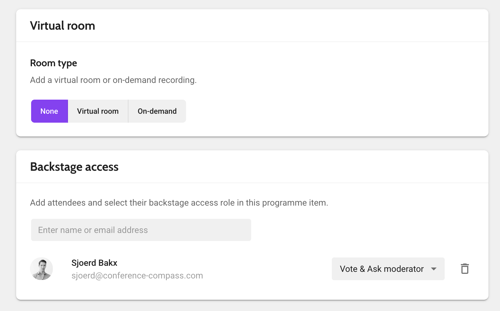
Save the page to send the invite.
To remove a moderator, click the trashcan icon next to their name. The respective email address will then no longer have access to the dashboard.
At any point, you can resend an invite by following the same process as inviting a new moderator.