![floq-logo-by-cc-2-white@2x.png]](https://knowledge.conferencecompass.com/hs-fs/hubfs/floq-logo-by-cc-2-white@2x.png?height=40&name=floq-logo-by-cc-2-white@2x.png)
Selecting the right session type when building a virtual or hybrid event determines how attendees interact with your sessions, presentations, or networking activities. This reference guide outlines the available virtual session options, what each session type means, and when to use them for your event content.
Session types at a glance
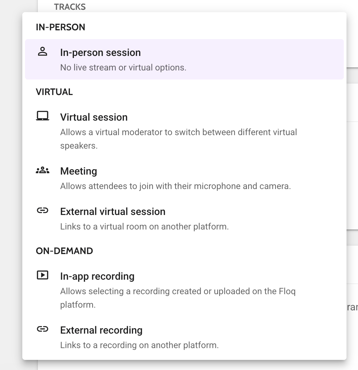
Selecting a session type configures how attendees access in-person, virtual or recorded content from your schedule:
In-person
- In-person session: Best for in-person only sessions. Completely hides virtual access buttons.
Virtual
- Virtual session: Best for structured presentations and panels. Displays an Enter virtual room button with built-in Q&A, polls, and controlled speaker access.
- Meeting: Best for roundtables, workshops, and networking. Displays an Enter virtual room button with open multi-way video and audio for all participants.
- External virtual session: Best for Zoom, Teams, Webex, or other custom links. Displays an Enter virtual room button that redirects attendees straight to a third-party platform.
On-demand recording
- In-app recording: Best for post-event viewing.Allows selecting a recording created or uploaded on the Floq platform.
- External recording: Links to a recording or video on another platform.
Detailed definitions
In-person
In-person session
Overview: No virtual session and used for onsite events, but a Vote & Ask dashboard is available to utilising the voting, polling and Q&A features.
When to use it: Use this setting for traditional in-person sessions, such as an on-site session or physical room presentation, where no one is online and all attendees are present in the room.
Attendee Experience: Attendees see session details like time and location, and vote & ask as well as Q&A on a large screen is possible and can be engaged by users in their mobile app.
Virtual
Virtual session
Overview: A controlled, broadcast-style room hosted directly on our native virtual event platform.
When to use it: Ideal for main stage keynotes, panel discussions, or sponsored webinars where a small group of speakers presents to a large audience.
Key Features:
- You can add up to 15 moderators and speakers for the same session.
- Speakers and moderators present on stage with full control over audio, video, and screen sharing.
- Attendees join as passive audience members with interactive tools like text Q&A, chat, and live polling.
Attendee Experience: Clicking the Enter virtual room button launches the live broadcast window directly within the app.
Meeting
Overview: An interactive, collaborative video room where all participants can actively share their camera and microphone (used to be called hosted session)
When to use it: Perfect for small group breakouts, poster presentations, roundtables, or casual networking sessions.
Key Features:
- A maximum of 15 attendees can enter the room.
- Hosted session allows adding only one Host.
- Peer-to-peer style interaction similar to a group video call.
- Encourages real-time conversation and group collaboration rather than a one-sided presentation.
Attendee Experience: Clicking the Enter virtual room button opens an interactive room where the platform prompts the user to enable their camera and microphone.
External Virtual session
Overview: Connects a session on your schedule to a third-party web meeting or live-streaming platform such as Zoom, Microsoft Teams, Webex, Vimeo, or YouTube Live.
When to use it: Use this when your team or speakers prefer operating within an external tool they already own and manage.
Attendee Experience: Clicking the Enter virtual room button seamlessly redirects the attendee to your specified external URL or opens the third-party application.
On-demand recording
In-app recording
Overview: Replaces live streaming access with a video-on-demand player for pre-recorded content or post-event session catch-ups.
When to use it: Switch your session to this setting after a live presentation has concluded and the session recording is processed and ready to watch.
Attendee Experience: The primary call-to-action button dynamically updates from Enter virtual room to View recording, allowing attendees to watch the session anytime at their own pace.
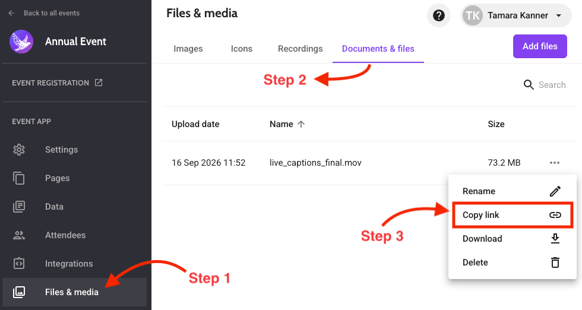
MP4 Files: You can link directly to an .mp4 file hosted on your own website or uploaded to the Files and media library in Floq Studio.
👉 To do this, go to Files & media > click the Documents & files tab > locate the video you want linked in your app and click on the ellipsis (3 dots) > and click Copy link. Paste this link in the URL section of wherever you want it hyperlinked.
External recording
Overview: Replaces live streaming access with a video-on-demand player for pre-recorded content or post-event session catch-ups with a URL from a public Youtube or public Vimeo video.
When to use it: Switch your session to this setting after a live presentation has concluded and the session recording is processed and ready to watch.
Attendee Experience: The primary call-to-action button dynamically updates from Enter virtual room to View recording, allowing attendees to watch the session anytime at their own pace.
Youtube or Vimeo: Copy your URL from YouTube or Vimeo and paste it in the External recording section
Session level vs. presentation level setup
You can assign session types at two different levels in your data editor depending on your event schedule structure:
- Session Level: Assigning a session type at the session level applies the specific type to the primary agenda item (example: adding an in-person session type to a session). This covers most standard keynotes and schedule items.
- Presentation Level: Presentations are typically nested under sessions (but this is not a requirement). Assigning session types at the individual presentation level is designed for parallel or concurrent activities occurring within a single broader session block (for example: Meeting session type for presentations and posters).
For example, use presentation-level rooms if a single 1-hour "Poster Session" block contains five distinct poster presentations occurring in five separate virtual rooms at the same time.
⚙️ Troubleshooting
If attendees report issues joining a session or viewing video content, check the following common configuration points:
- Missing button or enter session button not showing: Check if the session type is accidentally set to In-person session. Ensure that a valid URL is added for External Link sessions or that the session status is set to active.
- In the app, the you cannot see the virtual session or on-demand button: This may be because it is hidden in your data types settings. To check, go to Settings in your event app > click Data types > go to Programme items and select the type you want virtual rooms to be available for (eg: sessions or presentations) > then go to Virtual room section and make the the Visibility of virtual or on-demand room button is toggled on Show button.
- Attendees cannot unmute or turn on video: Verify whether the session type is set to Virtual session instead of Meeting. Virtual sessions keep attendees muted with cameras off by design.
- View recording button does not launch video: Check your On-Demand Recording settings in Floq Studio to ensure the built-in recording is selected or the external video link URL is formatted correctly.