![floq-logo-by-cc-2-white@2x.png]](https://knowledge.conferencecompass.com/hs-fs/hubfs/floq-logo-by-cc-2-white@2x.png?height=40&name=floq-logo-by-cc-2-white@2x.png)
31 March 2026
Features and improvements
- When changing the room type of a session, you can now also automatically give backstage access to persons that have a role in this session and that are are linked to attendees. When changing the room type to Moderated, you can add a speaker invite, when changing it to Hosted you can add a host invite.
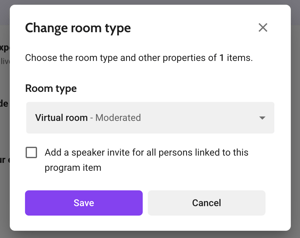
- You no longer need to enable virtual rooms in the data types to allow changing the room type. Instead, the room type is always visible.
- The Roles and resources export, that can be created from the programme item data, is updated to ensure all PDF links and uploaded intro videos are included, regardless of whether they were added via the host dashboard, speaker dashboard, or studio.
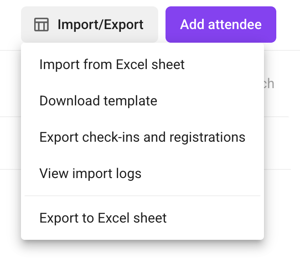
- From the Attendees list, you can now create an export that contains an overview of the registrations and check-ins of all users. Click Import/Export and choose Export check-ins and registrations. The exported file will contain 3 tabs: Sessions, containing the total number of checkins and registrations for each session, Attendees, containing the total number of checkins and registrations per attendee, and Attendee-sessions, that shows which attendee has checked into which session.
Bug fixes
- The batch action modal for adding attendees to a group now correctly displays the title Change room type instead of Add to group.
- Team members with the role Event admin can now also delete news messages.
23 March 2026
Features and improvements
The recordings that are created or uploaded in moderated sessions can now be found in the Files & media library on the tab Recordings. The item Virtual & interactivity, where they were before, has been removed from the side menu.
In the table, you will find an overview of all timed and untimed programme items that have a recording. This can be a pre-recording, introduction video, session recording or audio description.

When clicking a programme item to open it, you will see the recordings in their respective category. Depending on the type of recording, different options are available from the options menu. Recordings that consist out of a slides and speaker frame, can be expanded: the files can be downloaded separately.

5 March 2026
Features and improvements
-
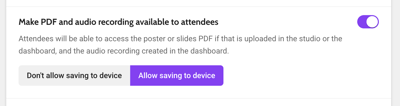
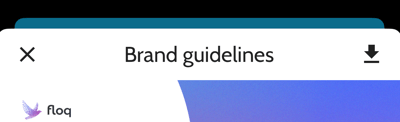
You can now choose whether you want to allow attendees to download or share the poster/slides linked to a programme item in the mobile app. You can find the setting in the data types. Select a programme item type and make sure that the toggle for Make PDF and audio recording available to attendees is on. Then choose the preferred option. In the mobile app, a Download icon is available when Allow saving to device is on.When it's off, the button is not there
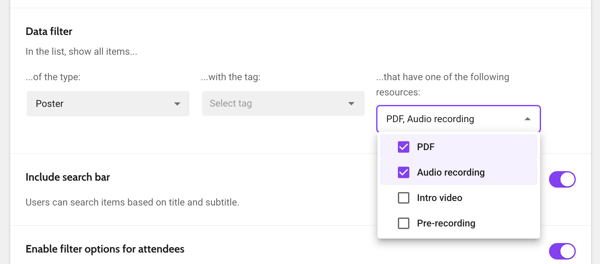
- On List pages, an option was added to filter the list on only items with resources. Open the list and scroll down to the list filters. Below ...that have one of the following resources, choose the desired option. When for example choosing PDF, the list will only show items matching the filter that have a Slides/Poster PDF attached.
Bug fixes
- Fixed an issue where the daily programme page would flicker on certain screen sizes and page lengths.
3 March 2026
Features and improvements
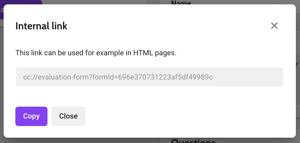
- You can now create an internal link from an evaluation form, so that you link directly to the form from for example a navigation page, information page or news message. Just click the link icon at the top right of the evaluation form page and copy the cc:// link.
- Representatives can now be imported through Excel. In the export of your institutions, add a column representatives and add the email addresses of your representatives there. Please note that they should already be on the attendee list, otherwise they are not imported!
- In the event settings, the Membership section was added. It contains two URLs: to become a member or to renew your membership. These map to buttons in the app, and only apply when the membership status is synced to the app. For more information about that, get in touch with your Customer Success Manager.
- From the data editors, tab Programme items, you can create an export that contains all backstage access roles and resources, such as uploaded PDFs and recordings. Click Import/Export and choose Export roles and resources.
- When duplicating an event, the evaluation forms are now also copied. Please note that the responses are not!
Bug fixes
- Fixed an issue where the attendee sync settings were not displayed when editing an existing integration.
- Session roles now remain invisible when they are hidden. Before, the changes were not saved and the section was again visible after refreshing the page.
- In the Event Engagement analytics, the Ratings block now shows the total number of individual ratings submitted instead of the count of sessions with ratings.
- In the exhibitor booth, the icons on the Resources tab now show correctly. Before, some icons were missing.
24 February 2026
Features and improvements
Onsite session check-in
A host at the room entrance can check in attendees as they arrive. Organisers can enable host check-in per data type in the Studio and invite hosts in advance. Hosts get a dedicated feature in the app, allowing them to select their session and check in participants on arrival.
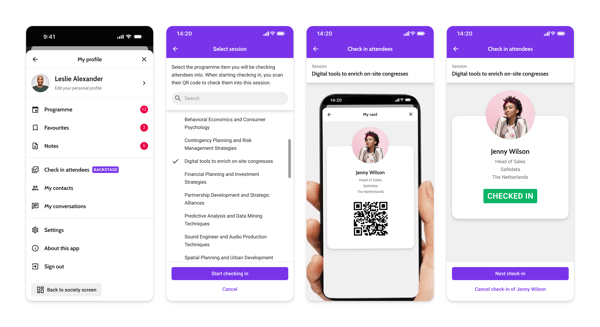
In the studio, you can find and edit the list of checked-in users for every programme ite. Additionally, you see it in the analytics dashboard and export it from there.
Reported messages and users
- Topical chat messages that are reported multiple times, now appear as single entries in the overview table. The timestamp automatically updates to reflect only the most recent report.
- The Reported column is now left-aligned, making it easier to read, and contains the date of the last report instead of the first.
- You can now clear all reports for a specific user, post, or message with a single click of the Ignore report button, instead of having to delete multiple reports one by one.
News messages
- You can now instantly identify news messages that include a push notification via a new dedicated column in the event and society news overviews.
- When scheduling news or targeted messages with a push notification more than 30 days in advance, a warning is shown, alerting you that the notification will not be sent due to system limitations.
Other
- You can now filter programme items in the data editor by their backstage invite status to easily identify which items have had invites sent and which have not.
Bug fixes
Data editors
- You can now add programme items to a new place immediately during creation without having to save and reopen the place first.
- Manually created tags that are added to programme items via batch edit, now no longer incorrectly show a lock icon.
- When using an event template, all menu items are now correctly linked without having to manually resave them to fix blank pages.
Other
- The background color of an intro screen image is now saved correctly after changing the image itself.
- The links that can be created for a file in the Documents & files tab in the File library, now directly link to the document.
- When using the top menu layout in the web app, you can now see all search results a list, without the first item being hidden or the search bar shifting position.
9 February 2026
Features and improvements
Evaluation forms
The Evaluation forms have been rebuilt entirely. Instead of a tab in the Virtual & Interactivity page, they can now be found in their own side menu item.
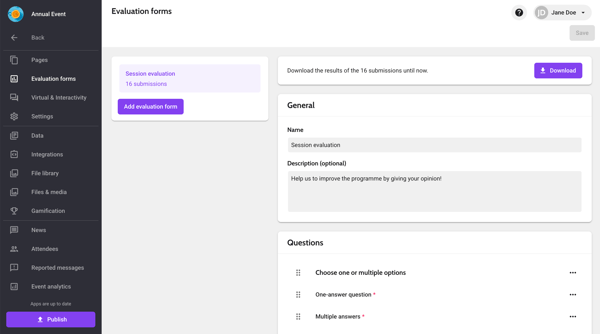
Forms added in the previous version of the evaluation form page are migrated to the new forms. An overview of all forms can be found in the list on the left. You can add a new form by clicking Add evaluation form.
When selecting a form, its details are shown on the right side. The results of the submissions until now can be downloaded from the alert at the top of the page. They will be exported in an Excel sheet with the same structure as the questions in the form.
In General, the form name and subtitle can be configured. Further down, you can find all questions in the Questions section.
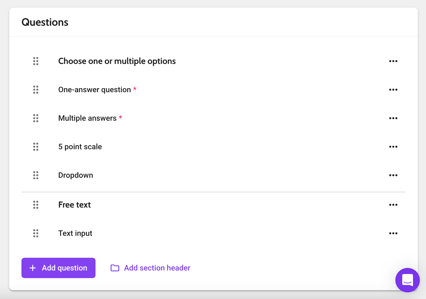
Questions can be reordered with the drag handle on the left. If you have many questions, adding a section header can help to make the form clearer for attendees.
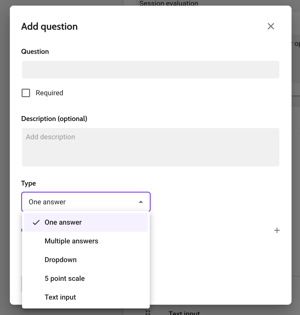
When adding or editing a question, enter the question itself, whether it should be required to submit the form and optionally a description or more information. Then choose the available question type: One answer (radio buttons), Multiple answers (checkboxes), Dropdown, 5-point scale or Text input. For the first 4 question types, add the available options, which can also be reordered with the drag handle on the left. These options can also be imported with the + icon right next to the header, for example if you want to copy them from elsewhere. A warning is shown when you click outside the modal to prevent accidental data loss.
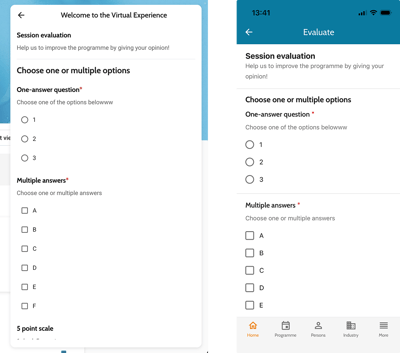
In the mobile and web app, the form layout has also been improved:
Files & media library
Uploaded profile pictures, company logos, other images, icons and files can now be found in the new Files & media library.
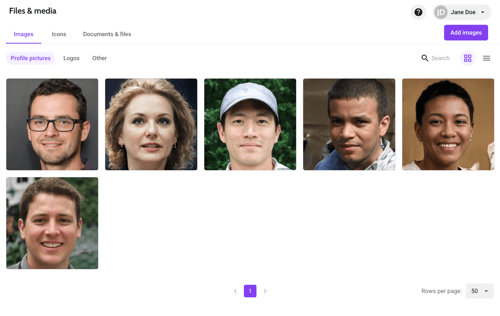
The page has 3 tabs:
-
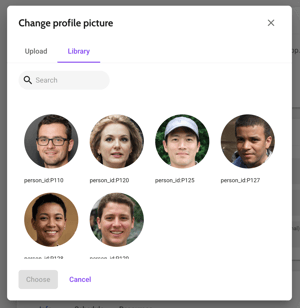
Images: Profile pictures and company logos uploaded within the person or institution detail pages, are added here. You can also upload the images in batch here through the Add image button on the top right. Images are cropped and resized to the required dimensions after uploading. Within the person or institution, you can then select the image from the library.
 On the tab Other images, you can upload images you want to use elsewhere, for example in information pages. To find the image URL, click on ... and choose Copy link.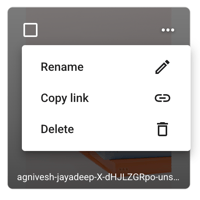
-
Icons: Similar to profile pictures, any custom icons that are uploaded elsewhere in the studio, for example for tags or navigation pages, can be reviewed here. They can also be uploaded through here and then selected in the object or page.
- Documents & files: Here you can add any document you want to use in your event, for example PDFs, presentations, word documents, etc. Similar to the image URL, just click ... and choose Copy link for the document URL.
On all pages, you can search for the image or file name through the search bar. On the images and icons tab, you can toggle between image and list view at the top right:

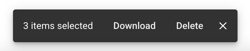
When selecting one or multiple images or files with the checkbox, the batch edit toolbar appears, allowing you to download or delete all selected images or files at once.
Backstage access invites in data editor
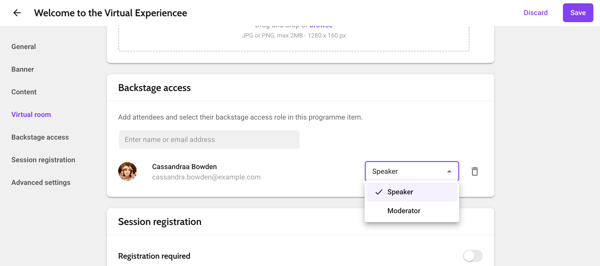
You can now invite backstage access users from the programme item page itself, instead of a separate page in Virtual & Interactivity.
Just open the detail page of a programme item and scroll down to the Backstage access section. Here you can add attendees that are already on the attendee list, or create new ones. After adding the attendee, choose the role. Please note that the available roles depend on whether the room is a non-virtual, moderated or hosted session. The invite is sent at the moment you save the page.
Reported messages and users
The feature to report messages and users is now enhanced with the following improvements:
-
Attendees can add a reason when reporting a message or user, giving event organisers more context to assess the situation.
-
In the studio, you can now open a detail page of a reported message or user. At the top of the page, you can see who reported the message, at what date and time and for what reason.
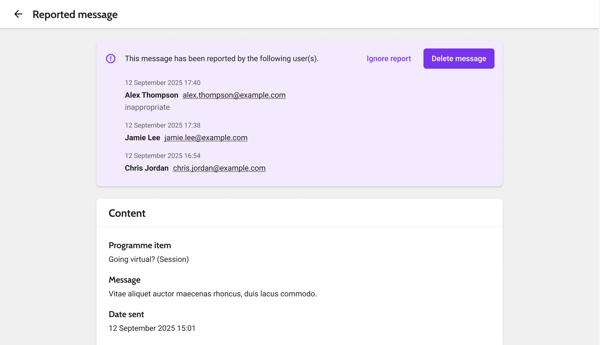
- The option to delete a reported message or post, or block a user was already available. A new option has been added to ignore a report. This can be used if a message, post or user was unjustly reported. The reports are then removed and the message, post or user is no longer marked as reported.
-
In the Advanced tab within the app settings, you can now enter an email address where notifications will be sent whenever a message or user is reported. This ensures that immediate action can be taken if needed.
Show external badge bar code or QR code
An option to show an external code on the virtual business card was added. Within the Event settings, General tab, Features section, you can now choose whether to display the platform QR code or an external code.
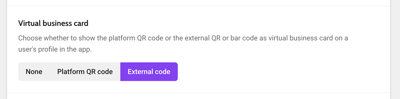
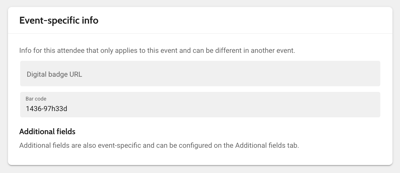
For this external code, the value as set within the Bar code field on the Event-specific info in the attendee detail page is used. It is converted in a bar code when it only has numbers, and in a QR code when it also has alphabetical or special characters.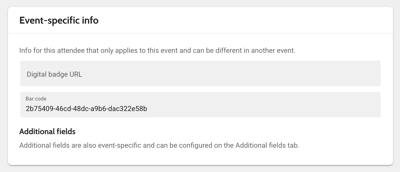
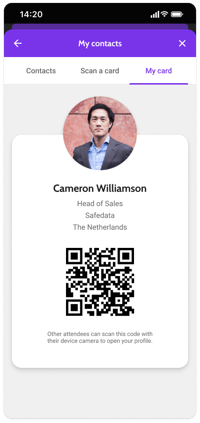
The code appears when editing your profile through the mobile app, and on the My card page that can be accessed through My contacts.
Floor plans
Floor plans now have two new settings:
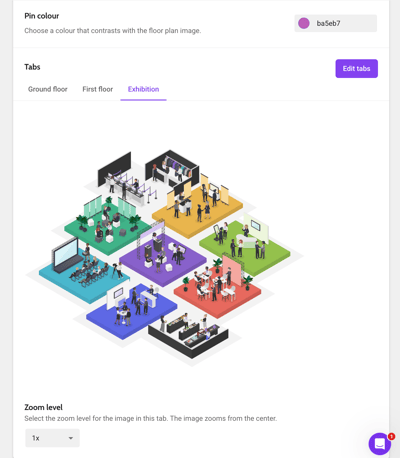
- With the setting Pin colour, you can choose the colour of the pins on the floor plan. By default, they are the contrast colour, but any other hexadecimal colour is possible. The setting applies to all tabs.
- Per floor plan tab, you can choose a Zoom level. This can be used when your floor plan is very dense and has many pins close to each other.
Other
- When add a new event, it directly opens after creating it. You don't need to go find it in the event list first.
-
When creating a new role data type, reverse forms are now by default filled in based on the singular role, reducing manual input and making role setup less error-prone.
- The default email template, that is used when not uploading custom artwork or colours, has been updated and modernised.
Bug fixes
Data editors
-
The popup asking you if you want to save your changes, no longer appears when no changes have been made.
- When using Edit mode, you can no longer change the type of untimed items to a timed data type and vice versa. This was possible before, but caused items to disappear from the data table.
- The Part of schedule field can now be locked if it's empty. This was not working before.
Event settings
- Changes to the tabs for a data type tabs are now saved when pressing Save in the tabs modal. Before, they were only saved when other fields were also modified.
-
When using the date picker for updating the event end date, the correct date now remains selected, instead of 1 day before that date.
Other
- When creating an event from a template that had a sponsor banner, the images are now removed from that sponsor banner. Before, they were displayed in the studio but not the app, and the issue was only fixed when re-adding the entire widget.
- Profile pictures can now be deleted through the attendee detail page. Before, the image was back after saving the page and returning to it.
- For the visibility of items on a navigation page, you can now also select event groups instead of only community groups.
- When zooming in to a floor plan on the web app, the pins keep their absolute size instead of being resized relatively to the zoom level.
20 January 2026
Features and improvements
Allow lead scanning of badges with a QR code
Besides only numerical bar codes, it is now also possible to add alphabetical and special characters in the field Bar code in the section Event-specific info of an attendee.
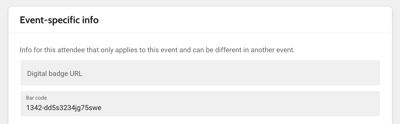
When scanning that code with the in-app scanner, that can be found in My contacts > Scan a card, the profile of the linked user opens. This allows adding for example the QR codes of the badge here. Then for lead scanning, exhibitors do not have to scan the platform's virtual business card in the app, but can just scan the physical badge to add the attendee to their leads dashboard.
Mobile app
-
When there is only one tab in the detail page, the tab bar is hidden.
-
A skeleton loader was added for program items with a banner, to ensure a smoother visual experience.
- The floor plan pin labels are now dynamically repositioned on the screen, ensuring titles are no longer clipped at the screen edges when the map is fully zoomed out.
Bug fixes
Mobile app
-
An issue was fixed on Android where the date navigation header would fail to reappear when swiping up in the afternoon or evening program timeframes after navigating from the morning section.
-
The sign in screen is now scrollable on Android, allowing users that have increased their text size to see all elements correctly.
- When navigating through multiple levels in the mobile app, the back button now returns the user to the previous screen rather than resetting to the root menu.
20 January 2026
Features and improvements
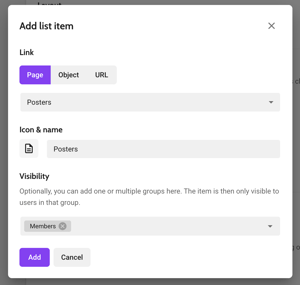
- For items on navigation pages, can now choose for what groups they should be visible. Below Visibility, select the group(s) that should be allowed to see the item. All other groups will not see it. Please note that you will still need to set the access restriction of the page itself.
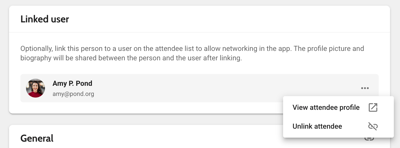
- When unlinking a person from an attendee or vice versa, the text has been updated to Unlink instead of Delete, to make clear that the person or attendee won't be deleted
- When creating an event news message, the default timezone is now event timezone instead of local timezone, since it is more likely that you want to schedule your notifications taking the event time into account. Additionally, the selected time is no longer updated when you change from Local to Event timezone or vice versa.
- When linking an external bar code to an attendee on the attendee list, you can now not only add numbers, but also alphabetical and special characters. For the linking to work on the mobile app, you will need version 8.1.1 or higher when the code contains special or alphabetical characters.
- When there is no slides stream, the attendee dashboard of a moderated session will now by default show the speaker stream in the main frame.
Bug fixes
- The field App type in the app settings now correctly reflects the app type, instead of always displaying Society.
- When changing the parent (the schedule it is part of) of an item that was imported by a channel using Excel, it is now visible that the schedule is locked. Before, the relation was locked but the lock icon was not updated.
- When changing the parent of channel-created items to a manual item by adding themon the Schedule tab of the manual item, this relation is now locked. Before, the relation was only locked when it was added the other way around: by updating the Part of schedule field in the objects themselves.