![floq-logo-by-cc-2-white@2x.png]](https://knowledge.conferencecompass.com/hs-fs/hubfs/floq-logo-by-cc-2-white@2x.png?height=40&name=floq-logo-by-cc-2-white@2x.png)
You can build public spaces for open networking or private groups tailored to specific attendee segments.
Here is a breakdown of how the group chats feature works:
- Custom chat settings: Every group chat topic can be customized with its own unique icon, name, and subtitle.
- Public or private access: Public group chats are open for anyone to join. Private group chats restrict access solely to members who have been explicitly added in the group chat in the Floq Studio.
- Flexible member management: You can add members manually to a chat group individually or import them in bulk using an Excel spreadsheet with a downloadable template.
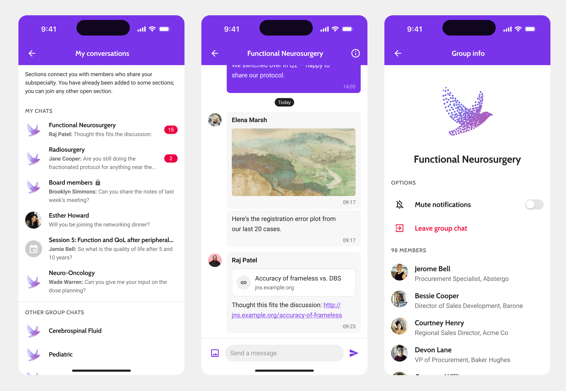
How to add a public or private group chat
👉 Where to add group chats in the studio: Go to My conversations > + Add group chat > choose public or private group chat > either add members to a private group chat one-by-one or by importing via an Excel.
Chat types:
-
Public group chat: When the chat is public, everyone will see it in their My conversations list and can join.
-
Private group chat: When it’s private, only invited members (members who are added to the specific group can) see the chat.
Accessing group chats in the app
Attendees can access all group chats through the My conversations
page,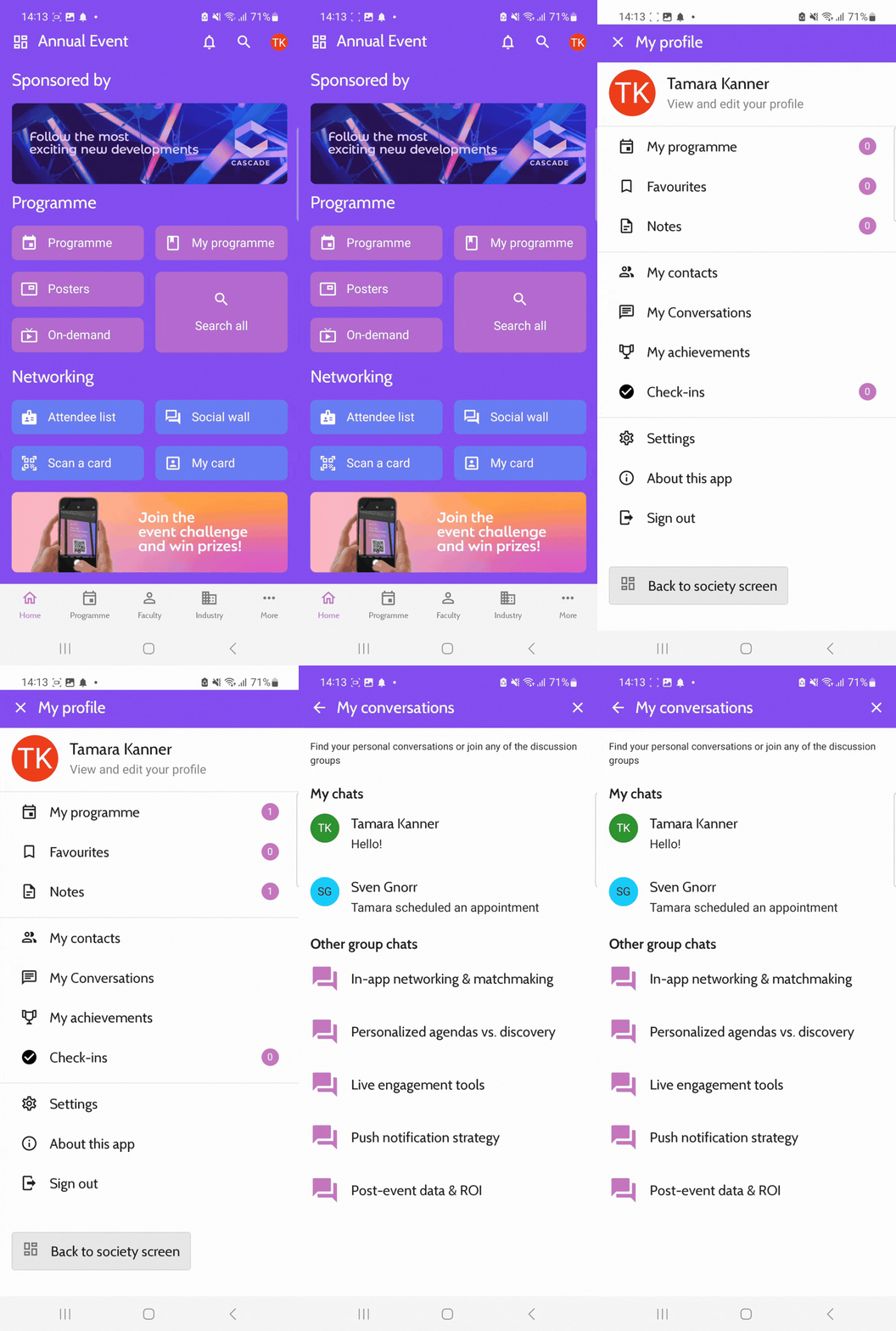 which opens directly from their user profile.
👁️ Where can users see group chats in the app: Go to the
app and choose your event > click on your Profile (top right
button) > Click My conversations.
This page is organized into clear sections:
- My chats: Displays all private chats, session chats, industry chats, and group chats the user has already joined.
- Other group chats: Displays a list of all public group chats that are currently open for anyone to join.
Managing notifications and group info
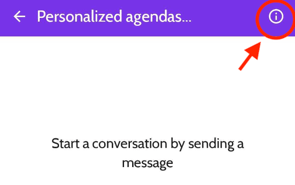
Attendees can visit the group chat info page by entering the group chat and clicking the info button on the top right corner.
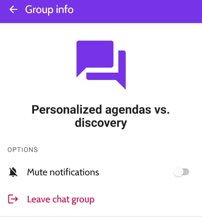
- Mute notifications: Attendees that have joined a group chat, receive an in-app or push notification whenever a new message is posted in the group chat. They can easily mute these notifications if they prefer not to receive real-time updates for a specific conversation. To mute notifications, toggle on the Mute notifications button in the group info page.
- Leave chat group: When leaving the chat group, attendees will no longer receive notifications for new messages within the group. Public groups can be rejoined any time.
- View member list: On the group info page, attendees can see all other members of that same chat and can contact them personally by clicking their name to open their profile.
🎥 Check out the demo video:
⚙️ Troubleshooting
Members cannot see or join a private group chat
-
If an attendee cannot find a private group chat under their My conversations page, ensure that their account was added to the chat's member list in Floq Studio. Private group chats do not appear in the open public chats section and can only be accessed after an admin adds the user as a member.
Bulk import fails when uploading the Excel file
-
If you encounter errors when importing members in bulk, ensure you are using the downloadable template provided in Floq Studio without altering the column headers. Double-check that all member email addresses match existing profiles on the attendee list, or add a first and last name if they're not on the list yet.
Attendees are not receiving new message notifications
-
If a user reports not receiving notifications from the group chat, ask them to check the group chat info page to verify that notifications have not been muted. Besides that, make sure that in the general notifications, that can be found in Profile > Settings > Notification settings, the toggle for Group chats is on. Additionally, remind users to check their mobile device settings to ensure notifications are allowed for the app where the group chat lives.